
Linear Integration
Connect Linear to Nexus-Catalyst to create, search, and update issues from any connected AI client — and link memories to the issues they relate to.
Overview
Section titled “Overview”With Linear connected, the AI can use the integration_query (read) and integration_mutate (write) MCP tools to:
- Create and update issues from a conversation — “create a Linear issue for this bug” — including priority, assignee, workflow state, project and labels
- Search issues by title text and team, narrowed by state, label or project
- Move an issue between teams and create projects and labels
- Read teams, projects, labels, statuses, and users to route work correctly
- Comment on issues and link NC memories to them, so the full context behind an issue is one call away
Nothing is ever deleted. There is no delete action for issues, labels, projects or comments, by design — Nexus-Catalyst doesn’t expose destructive operations against systems it doesn’t own.
Prerequisites
Section titled “Prerequisites”- A Linear account with access to your team’s workspace
- A Nexus-Catalyst account (any plan)
- Permission to create personal API keys in Linear
Step 1: Generate a Linear API key
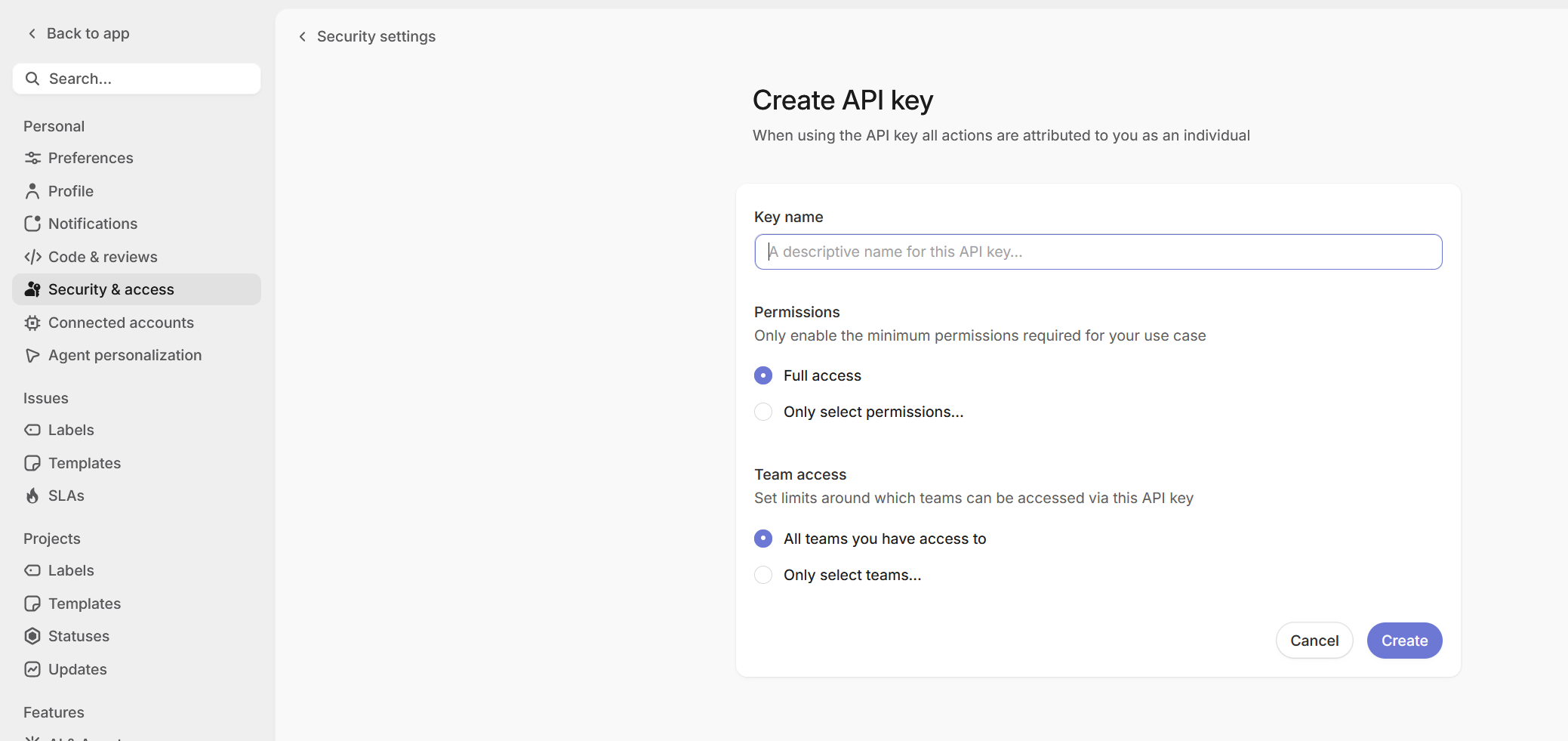
Section titled “Step 1: Generate a Linear API key”- Go to Linear Settings → API
- Click Create new API key
- Name it
Nexus-Catalyst Integration - Copy the generated key
Step 2: Connect in the dashboard
Section titled “Step 2: Connect in the dashboard”- Log in to the Nexus-Catalyst dashboard
- Click Connect Linear
- Paste your API key and click Test Connection. Nexus-Catalyst calls Linear and reads back the organization the key belongs to, plus how many teams and projects it can see — check that this is the organization you meant before continuing.
- Optionally set a Workspace label — see Step 3. Leave it empty if this is your only Linear organization.
- Click Complete Setup
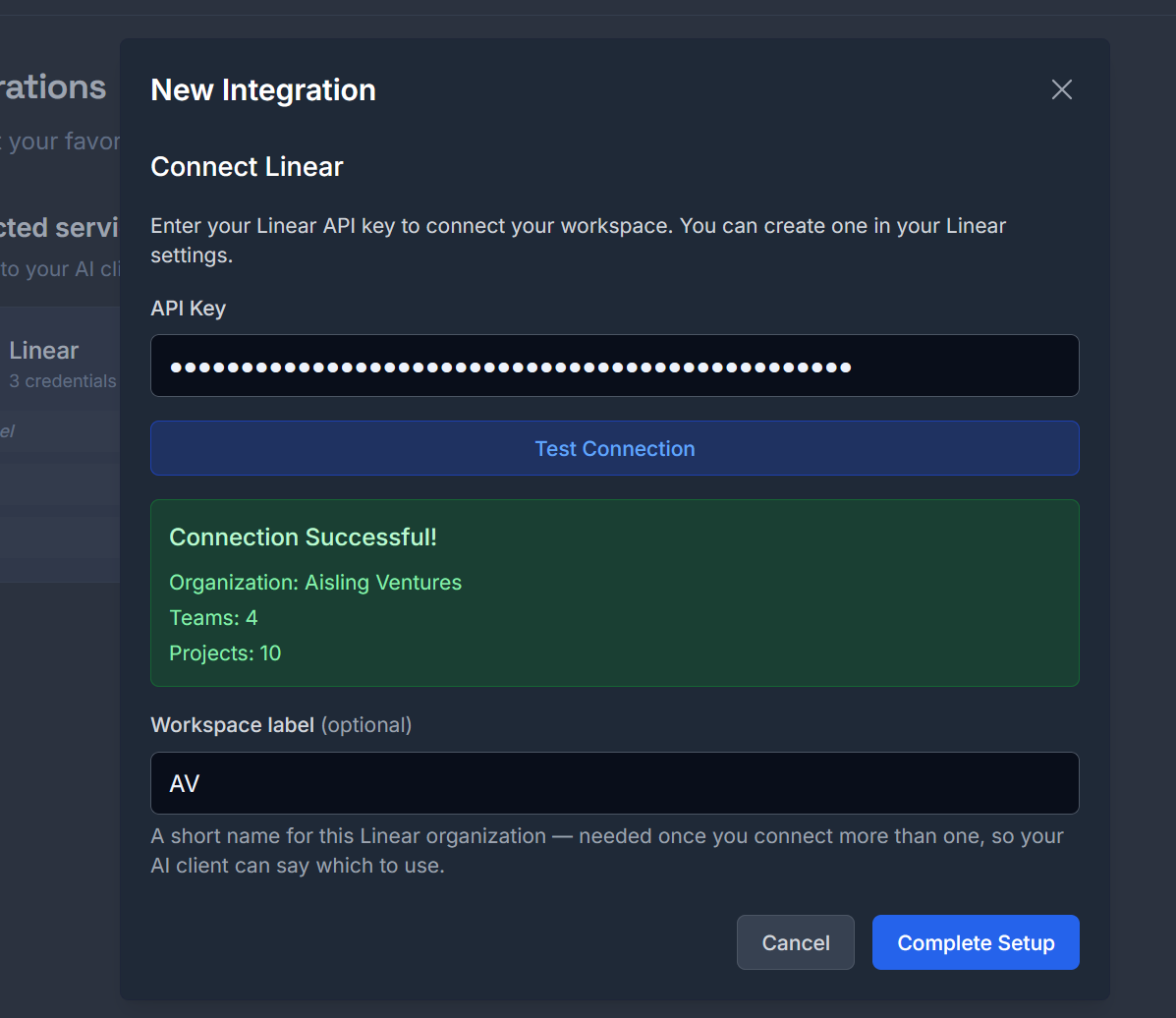
The key is verified with Linear before it is stored, so a revoked or mistyped key fails here rather than on first use.
Step 3 (optional): connect a second organization
Section titled “Step 3 (optional): connect a second organization”Repeat the two steps above with a key from your other Linear organization, and give each one a short workspace label — AV, JL, a client name. Nexus-Catalyst keeps one key per organization and routes each call by that label, so a single conversation can read and write in both without re-authenticating.
Labels are 1–32 characters: letters, numbers, hyphen or underscore. They are how you refer to an organization when talking to your AI client, so short and recognisable beats descriptive.
With one organization connected, a label is optional and every Linear call routes to it silently.
Once more than one is connected, every Linear call needs a workspace label. If it is missing, the tool does not guess — it replies with the labels it accepts, and your client can ask you which one you meant:
{ "success": true, "message": "Linear workspace disambiguation required", "data": { "disambiguation_required": true, "service": "linear", "available_workspaces": ["AV", "JL"], "message": "Multiple Linear workspaces configured. Specify workspace parameter. Valid values: \"AV\", \"JL\"." }}An unrecognised label returns the same shape — disambiguation_required with available_workspaces — carrying error instead of message. Either way a typo tells you the valid set rather than failing silently or writing to the wrong organization.
Step 4: rename, rotate or remove a key
Section titled “Step 4: rename, rotate or remove a key”Connected workspaces are listed under Connected services on the Integrations page, one row per credential. Each row carries its label — or No label for a single-workspace credential — and two controls.
Rename a workspace label. Click Rename, type the new label, press Enter. The label is what you say to your AI client, so renaming changes how you refer to that organization in conversation; nothing about the key itself changes. Clearing the label entirely turns the credential back into the unlabelled single-workspace one, which routes silently when it is the only one you have.
Two renames are refused rather than guessed at:
- A label another connected workspace already uses. Merging them would point every call for that label at the wrong organization, so it is rejected and nothing changes.
- A label outside
A-Z a-z 0-9 _ -, or longer than 32 characters.
Rotate a key. Generate a replacement in Linear, then connect it again from the same page using the same workspace label. A key stored under a label that already exists replaces it, so there is no gap where the workspace is disconnected and nothing to remove first. Revoke the old key in Linear afterwards.
Remove a workspace. Click Remove, then Confirm. The credential is deleted from Nexus-Catalyst immediately and that organization stops being reachable from your AI clients. This cannot be undone from the dashboard — reconnecting means generating or retrieving the key again — so removing is deliberately two clicks.
Removing one of two connected organizations leaves the other one routing on its own: with
a single workspace connected, calls go to it without asking, and the workspace parameter
becomes optional again.
Using the integration
Section titled “Using the integration”Create an issue from a conversation
Section titled “Create an issue from a conversation”Ask naturally in any connected client:
We just diagnosed a CORS error when the frontend calls the API fromlocalhost. Create a Linear issue for it on the platform team, priority high.The model calls integration_mutate:
{ "action": "create_linear_issue", "title": "CORS error from localhost", "description": "API returns CORS failure when frontend calls from localhost:3000. Diagnosis and fix notes: …", "team_id": "team-uuid-from-get_linear_teams", "priority": 2}The model resolves team_id first via get_linear_teams. If you have multiple Linear workspaces configured, it passes a workspace label too.
Search and read issues
Section titled “Search and read issues”What open issues does the platform team have about authentication?→ search_linear_issues with team_id and search_filters: { "state": "open" }.
A search needs query or team_id to scope it — a filter alone isn’t enough. query matches issue titles, not descriptions or comments, so ask for a team and filter it rather than relying on a keyword to find everything.
Filters are strict on purpose: search_filters accepts state, label and project, and an unknown key is an error. A filter that was quietly ignored would return the whole backlog, which reads exactly like a filtered answer. Label names are matched exactly and are case-sensitive — launch-critical and Launch-Critical are different labels to Linear.
Update or close an issue
Section titled “Update or close an issue”Mark NC-103 done and put it on the Platform team's Q3 project.→ save_linear_issue with issue_id, a state_id from list_linear_statuses, and project_id.
Two things to know before an update:
labelsreplaces the whole label set, it doesn’t add to it. Read the current labels first and send the union.- Moving an issue to another team renumbers it.
JUN-94becomesNC-<n>and the old identifier stops resolving, so anything referring to it needs updating by hand. The response gives you the new identifier.
Link a memory to an issue
Section titled “Link a memory to an issue”After a debugging session, connect the stored memory to the tracked issue:
{ "action": "link_memory_to_linear_issue", "memory_id": "mem_abc123", "issue_id": "NC-103"}Anyone picking up the issue later can pull the full session context with get_memory_detail.
Full action list
Section titled “Full action list”See the integration_query and integration_mutate reference for every supported action — reads, writes, metadata, comments, and memory linking.
Workflow examples
Section titled “Workflow examples”Bug → issue → context trail
1. You hit a bug and debug it with the AI2. recall_context surfaces similar past incidents3. "Create a Linear issue for this" → create_linear_issue4. store_context saves the session; link_memory_to_linear_issue ties it to the issue5. Whoever picks up the issue gets the complete backgroundFeature discussion → backlog
1. You sketch a feature with the AI2. "Turn this into a Linear issue with the design notes" → issue created with the full discussion in the descriptionTroubleshooting
Section titled “Troubleshooting”Connection failed
Section titled “Connection failed”- Verify the API key is valid — test it in Linear’s settings
- Check workspace permissions on your Linear account
- Regenerate the key and reconnect if it was revoked
A workspace label is already in use
Section titled “A workspace label is already in use”Renaming onto a label another credential holds is refused, because the two keys belong to different organizations and merging them would silently send that label’s calls to the wrong one. Rename or remove the other workspace first.
A rename says both labels are now connected
Section titled “A rename says both labels are now connected”The rename copies the credential to the new label before removing the old one, so that a failure never destroys the key. If the second step fails you end up with both — the message names each. Remove the old label to finish; your key is safe throughout.
Issue created in the wrong team
Section titled “Issue created in the wrong team”The model picks the team via get_linear_teams. Name the team explicitly in your request (“…on the Platform team”), or set a default team in the extension’s Linear tab.
“Workspace required” errors
Section titled ““Workspace required” errors”If you’ve connected more than one Linear organization, actions need a workspace label (e.g. "AV"). Mention which workspace you mean in your request. Rather than failing, the tool answers with the list of labels it will accept.
A filter was rejected
Section titled “A filter was rejected”search_filters only understands state, label and project. Anything else comes back as an error naming the supported keys — that’s deliberate, because an ignored filter returns unfiltered results that look filtered.
An issue identifier stopped resolving
Section titled “An issue identifier stopped resolving”Moving an issue to a different team makes Linear reassign its identifier. Look the issue up by its title, or use the UUID, which never changes.
What’s Next?
Section titled “What’s Next?”- MCP Tools Reference → — all
integration_query/integration_mutateactions - Nexus-Catalyst and Linear’s own MCP → — which one to connect, and when to use both
- Memory System → — how context is stored
Need Help?