
Cursor IDE Setup
Connect Cursor to Nexus-Catalyst for persistent memory across your development sessions.
Overview
Section titled “Overview”Cursor supports MCP (Model Context Protocol) servers natively. Once connected, Cursor’s AI can:
- Recall prior sessions — decisions, fixes, and context from past work, in any project
- Search your memory store mid-session with
search_memories - Store new context at the end of a session with
store_context - Load personas — specialized AI personalities like Jack (architecture) or Nora (documentation)
Prerequisites
Section titled “Prerequisites”- Cursor with MCP support — download from cursor.com
- A Nexus-Catalyst account with an active subscription or trial — start a 14-day trial, or use your invitation if you have one
No API key is required — the NC MCP server uses OAuth, and Cursor opens a browser window so you can sign in with your NC account.
Step 1: Add the MCP server
Section titled “Step 1: Add the MCP server”In Cursor: Agent Settings → Customize → MCPs tab → New MCP Server.
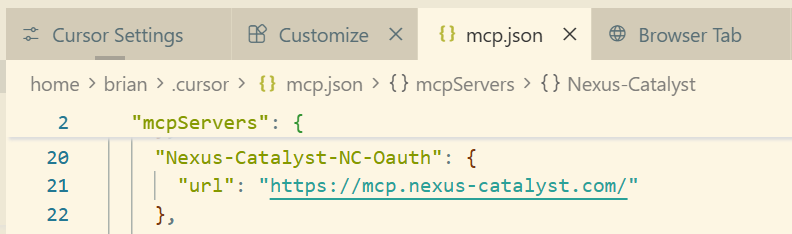
That does not open a form — it opens mcp.json directly, at ~/.cursor/mcp.json
(global) or in a project root for project-only access. Add an entry under
mcpServers:
{ "mcpServers": { "nexus-catalyst": { "url": "https://mcp.nexus-catalyst.com/" } }}The key (nexus-catalyst) is just the label Cursor shows you — name it whatever you
like. The url is the only required field: no API key, no bearer token, no transport
setting. Anything asking you to paste a token is out of date.
Step 2: Authenticate
Section titled “Step 2: Authenticate”Save the file and Cursor picks the server up. It appears in the MCPs tab with a login prompt — click it, and your browser opens the Nexus-Catalyst sign-in page. Sign in (email/password, Google, or GitHub) and approve access.
Step 3: Verify the connection
Section titled “Step 3: Verify the connection”Back in the MCPs tab, the entry should show a green status with the available tools listed:
recall_contextstore_contextsearch_memoriesget_memory_detailget_persona_definitionupdate_user_factsintegration_queryintegration_mutate
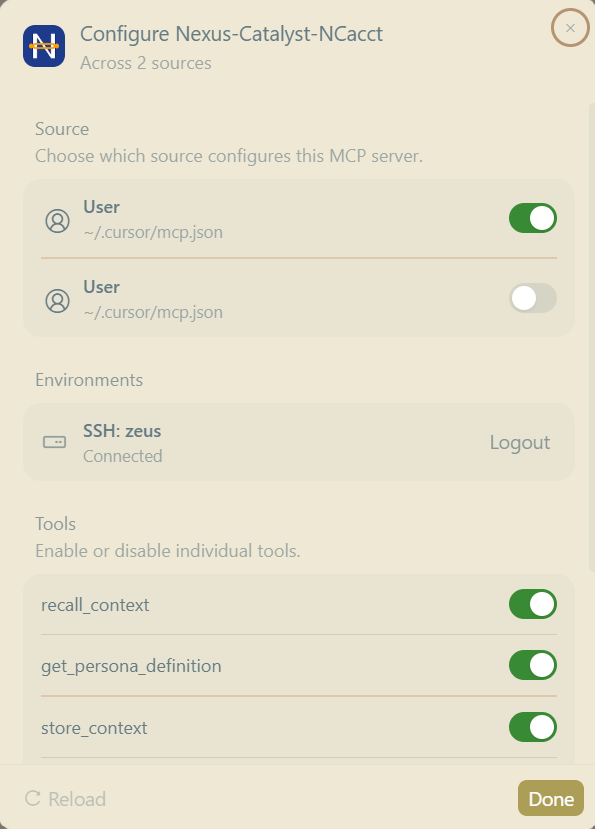
Clicking the entry opens its configure panel, where each tool can be toggled individually — leave them all enabled:
Step 4: Test memory recall
Section titled “Step 4: Test memory recall”Open Cursor’s AI chat and ask:
What do you remember about my current project? Use recall_context.If you’ve stored memories before, the response will reference them. If this is a fresh account, store one first:
Store a memory that I prefer TypeScript strict mode in all new projects.Using Nexus-Catalyst in Cursor
Section titled “Using Nexus-Catalyst in Cursor”Natural-language memory
Section titled “Natural-language memory”You don’t need to name tools — just ask naturally and the model picks the right one:
- “How did we handle rate limiting in the API project?” →
recall_context/search_memories - “Pull up the full write-up of that auth fix” →
get_memory_detail - “Remember that we’re standardizing on Prisma for this repo” →
store_context
Personas
Section titled “Personas”When recall_context returns a persona_hint, the model loads that persona via get_persona_definition. You can also ask for one by name — for example Jack (AI engineering/architecture), Betty (UX), Ed (product), or Nora (technical writing). See the full roster in Personas.
Linear from chat
Section titled “Linear from chat”With a Linear integration configured, you can create and search issues without leaving Cursor — “Create a Linear issue for this CORS bug.” See Linear Integration.
Troubleshooting
Section titled “Troubleshooting”Server shows “not connected”
Section titled “Server shows “not connected””- Check the URL is exactly
https://mcp.nexus-catalyst.com(no trailing path) - Re-trigger the OAuth flow from Agent Settings → Customize → MCPs — sessions can expire
- Confirm the server is reachable:
Terminal window curl https://mcp.nexus-catalyst.com/.well-known/oauth-protected-resource
Tools listed but calls fail with 401
Section titled “Tools listed but calls fail with 401”Your OAuth session expired. Remove and re-add the server, or use the login prompt in Agent Settings → Customize → MCPs to re-authenticate.
Memory not recalled
Section titled “Memory not recalled”- Verify memories exist in the dashboard
- Use a specific query — “what database did we choose for the e-commerce project” beats “what did we discuss”
- Ask explicitly: “call recall_context for this topic”
What’s Next?
Section titled “What’s Next?”- Claude Code Setup → — CLI + hook plugin
- MCP Tools Reference → — all NC tools
- Linear Integration → — issue tracking
Need Help?
Next: tell Cursor to use it
Section titled “Next: tell Cursor to use it”Connecting the server exposes the tools; it does not make Cursor call them. Add the MCP Instructions as a Cursor rule so recall and storage happen on their own.